
-
- Dedicated Servers
- Dedicated Server Hosting
- Managed Dedicated Servers
- Hyper-V Servers
- Hyper-V Hosting
- Managed Hyper-V Hosting
- What is Microsoft Hyper-V?
-
- Green Technology
- Green Hosting Technology
- Green Data Centre
Configuring MAPI Email in Microsoft OutlookThis article shows you how to setup Microsoft Outlook to work with your Web Wiz email account using MAPI. MAPI gives Outlook a native, Exchange-style connection that syncs your email, calendar, contacts, tasks and notes. It is available in classic Microsoft Outlook for Windows (2016, 2019, 2021 and the Microsoft 365 desktop app) – the new Outlook for Windows does not support MAPI, so use IMAP instead. 1. In Microsoft Outlook, from the File menu, select Add Account.  2. On the Email Address window enter your Email Address, then check Let me set up my account manually, and then click Connect. 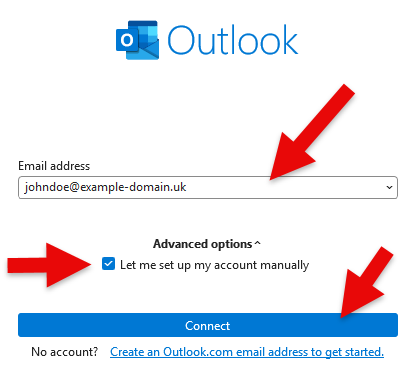 3. For the Choose Service click Exchange. Important: Select Exchange – do not select Microsoft 365 (it may be highlighted by default). The Microsoft 365 option will not connect to a Web Wiz mailbox. 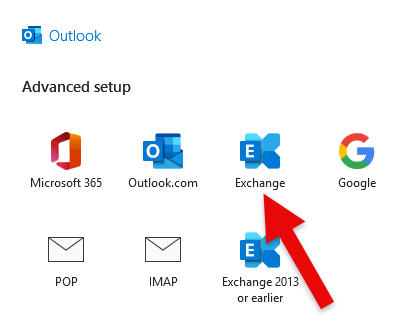 4. Outlook will now locate your mailbox settings automatically using Autodiscover. If you are shown a certificate prompt, click Allow to accept it. 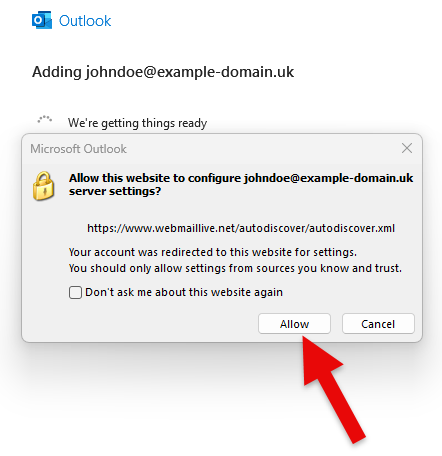 5. When the Windows Security window appears, enter your information as follows, tick Remember my credentials, and then click OK.
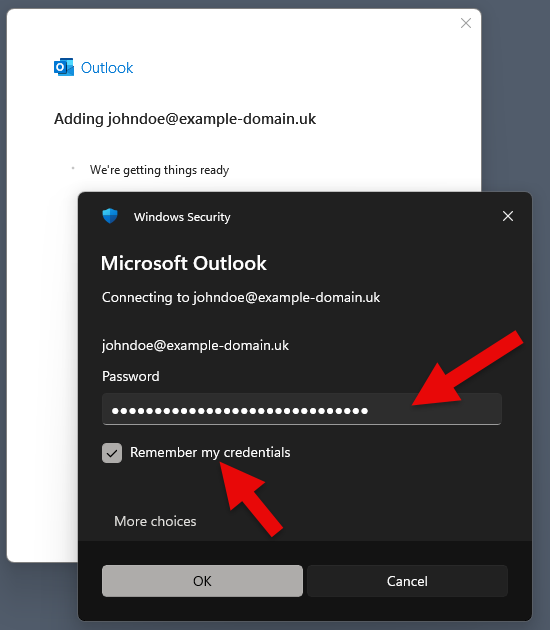 6. Choose how far back you would like Outlook to sync your mail, then click Next. 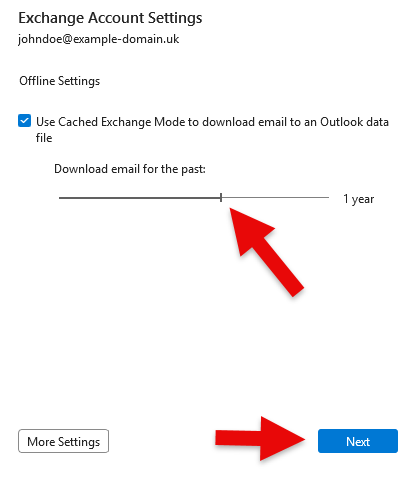 7. Click Done. Outlook will open and begin syncing your email, calendar, contacts, tasks and notes. 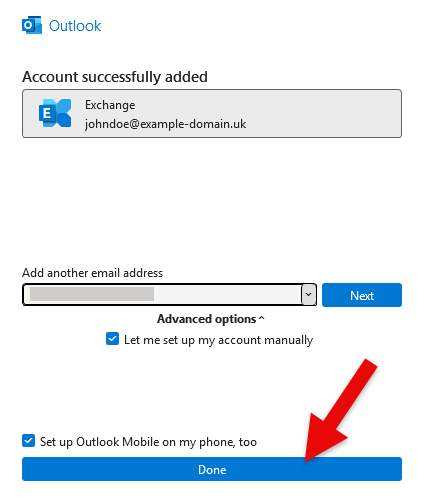 TroubleshootingOutlook creates an Outlook.com account or the mailbox appears emptySome installations of classic Outlook check Microsoft 365 first, even when Exchange is selected, and create an account linked to an address such as outlook_xxxxxxxx@outlook.com instead of your Web Wiz mailbox. The mailbox will appear empty and web access will point to Outlook.com. To stop Outlook doing this:1. Close Outlook. 2. Open Registry Editor and go to:
4. Open Control Panel, select Mail, click Show Profiles and remove the profile that failed. Then create a new profile and add your account again using the steps above. The 16.0 key applies to Outlook 2016, 2019, 2021 and the Microsoft 365 desktop app. "The name cannot be matched to a name in the address list"If Outlook asks you to pick a name, type your full email address into the search box rather than browsing the list. If the error persists, check whether Outlook has created an Outlook.com account as described above.Reference – underlying connection settingsThese values are configured automatically by Autodiscover and are provided for reference and troubleshooting only.
Web Wiz do not endorse or directly support third-party products and only give this information as a guideline for our customers' mailboxes hosted on our servers. Back To Hosting Knowledgebase Menu |
Fully managed or self-managed, from our own solar powered data centre.
Web Wiz® is the trading name of Web Wiz Ltd. Company registration No. 05977755. Registered in England and Wales.
Registered office: Web Wiz Ltd, Unit 18, The Glenmore Centre, Fancy Road, Poole, Dorset, BH12 4FB, UK.
Prices exclude VAT at 20% unless otherwise stated. VAT No. GB988999105 - $, €, prices shown as a guideline only.
Copyright ©2001-2026 Web Wiz® Ltd. All rights reserved.